Twitch added a “Stream Together” feature some time back, and people are still pretty divided over it. We have found it can be very useful when playing in groups and streaming with friends. So, let’s take a closer look together.
Stream Together Basics
You can find the Stream Together tab in the back end of your Twitch account. Navigate the left-hand bar down to Stream Together and you will find a page with a big purple button marked: Stream Together.
Clicking this will bring up the main Stream Together page which looks something like this:
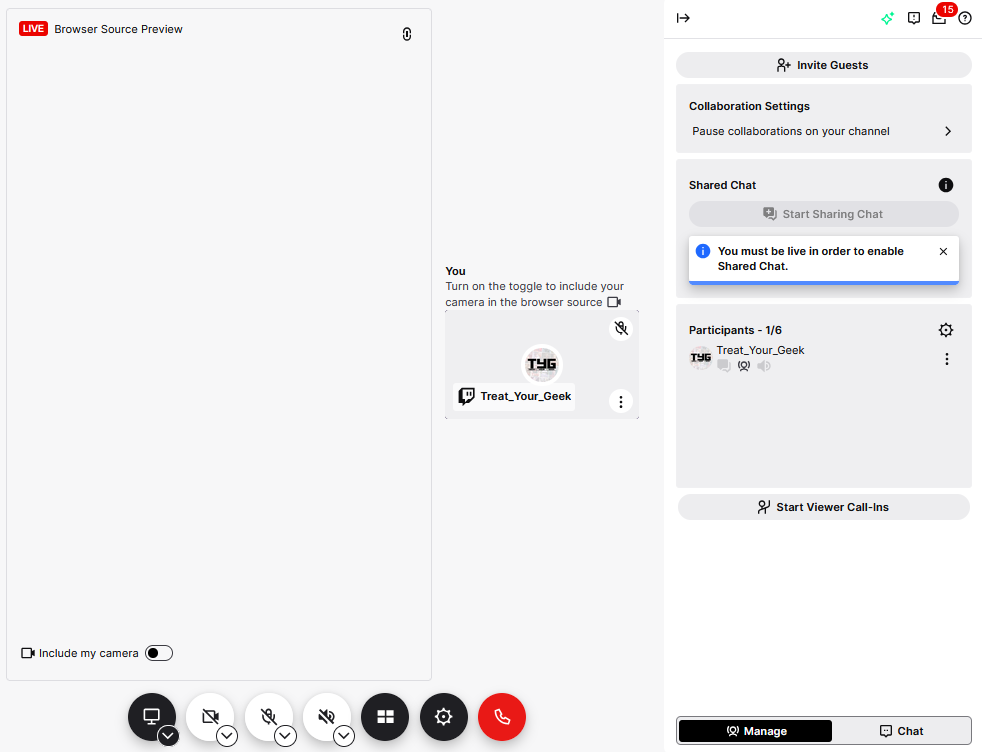
This bar at the bottom controls most of your voice and video feeds. It’s very similar to other video call apps to help acclimate yourself.

Invite Collaborators
To add guests to your collaboration, you will first need to invite them to your call.
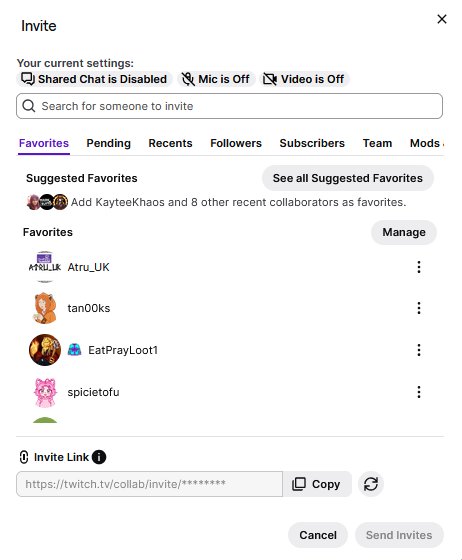
Navigate to the “Invite Guests” button on the top-right of your screen and click that to bring up the pop-up. Here all your favourite streamers and friends will appear.
You can invite everyone manually or copy the invite link at the bottom of the page.
Remember: There is a limit to the number of people you can have in any one collaboration. Once they have accepted the invite, they will see a screen similar to the hosts, and will appear on-screen for the host to see.
Adding The Source To OBS
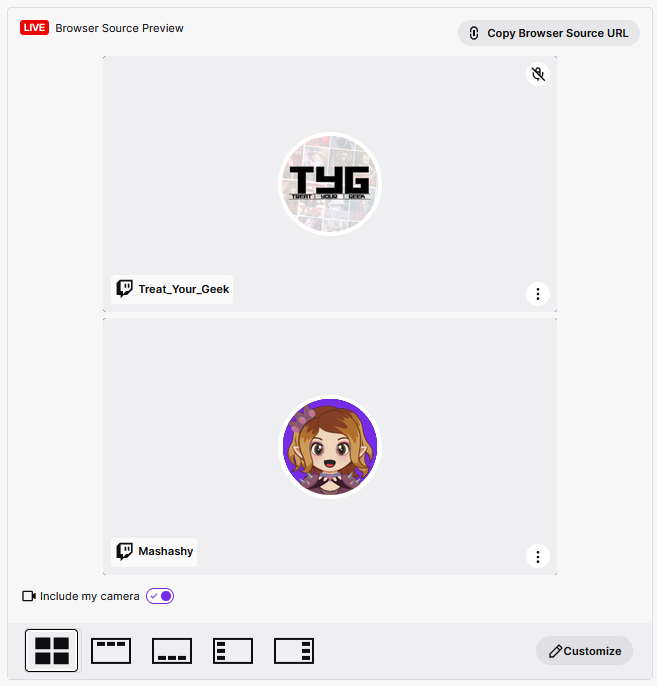
You can add your collaboration to OBS using the “Copy Browser Source URL” in the top right-hand corner of the Browser Source Preview dock.
Copy this link into a “browser source” in OBS and it will appear automatically. You can find out how to add a browser source to OBS here.
There are quick buttons along the bottom of this dock to change the appearance easily. For those looking for more control, the “Customise” button is in the bottom-right corner of this dock.
Share Your Chat
Once live, you can click “Enable Shared Chat” button. This combines the chat of all live streamers.
There are pros and cons to using shared chat, but it does make the experience better for viewers for a number of reasons. The main reason being able to follow the conversations over all streams without having to jump between chats. There are alternative ways to combine streams, but this is the most efficient.
Utility
You can mix and match how you use the stream together feature to collaborate in the way that best suits you and your workflow. It also works when players aren’t live to encourage others to follow them. There are a few features that could be streamlined and improved in the future, but it’s already much improved compared to how it started.
The Pros:
- Shared chat means no one is left out of the conversation
- Twitch shows players in your stream title and on the side-bar
- Removes the need for voice chat programs
- Streamers can notify their followers they are in a collab without going live
The Cons:
- Only available through Firefox and Chrome
- Can be heavy on CPU usage
- Some bots can slip through the shared chat and require manual deletion
Pro Tip: You can use OBS virtual camera to join calls with just your webcam or video capture feeds. Virtual Camera also allows you to broadcast a single source if you are already using your camera.
Want More Tutorials?
Looking to level up your streams more? Check out our other tutorials now.
About the Author